
Open-source AI inference without OpenAI API costs. For developers who need control.
If you’re running LLM-powered features at any meaningful volume, OpenAI API costs add up fast. At $15 per million output tokens for GPT-4o, a modest production workload can easily hit hundreds of dollars a month – before you even consider the data privacy implications of sending your users’ queries to a third-party API.
The alternative is self-hosted open-source inference. With Meta’s Llama 3.1 and AWS GPU instances, you can run a capable 8B parameter model for around $0.53/hour – and shut it down when you’re not using it. Your data never leaves your infrastructure.
In this guide I’ll walk you through the exact steps to get a working Llama 3.1 inference endpoint running on an AWS g4dn.xlarge instance using llama.cpp, tested end-to-end with real numbers from a live deployment.
What you will have at the end: A GPU-accelerated REST endpoint exposing an OpenAI-compatible API, capable of 34 tokens/second on a $0.53/hour instance.
Prerequisites
- AWS account with billing enabled
- AWS CLI installed and configured (‘aws configure’)
- A key pair (create one in EC2 Console → Key Pairs)
- A HuggingFace account – needed to download the model
- Basic terminal comfort
Estimated cost: ~$0.53/hour on-demand (g4dn.xlarge, us-east-1). Spot instances can cut this by 60-70%.
One thing to check first: New AWS accounts default to 0 vCPUs for GPU instance families. Before you start, go to AWS Console → Service Quotas → EC2 → search “Running On-Demand G and VT instances” and make sure your limit is at least 4. If it’s 0, request an increase – approval usually takes 30 minutes to 2 hours.
Also do this in advance: Go to huggingface.co/meta-llama/Meta-Llama-3.1-8B-Instruct, create a free account if you don’t have one, and accept Meta’s license terms to request access to the model. Meta auto-approves these requests but it can take a few minutes to an hour. If you skip this step and try to download the model later, you’ll hit a 403 error and be stuck waiting mid-exercise.
Step 1: Launch the GPU Instance
We’ll use the AWS Deep Learning Base GPU AMI (Amazon Linux 2023). This is the key choice that saves you significant setup time – it comes pre-loaded with CUDA drivers, build tools, git, cmake, tmux, and everything else you need. No driver installation headaches.
Find the latest AMI for your region:
aws ec2 describe-images \
  --owners amazon \
  --filters \
    "Name=name,Values=*Deep Learning*GPU*Amazon Linux 2*" \
    "Name=architecture,Values=x86_64" \
  --query "sort_by(Images, &CreationDate)[-1].{ID:ImageId,Name:Name}" \
  --region us-east-1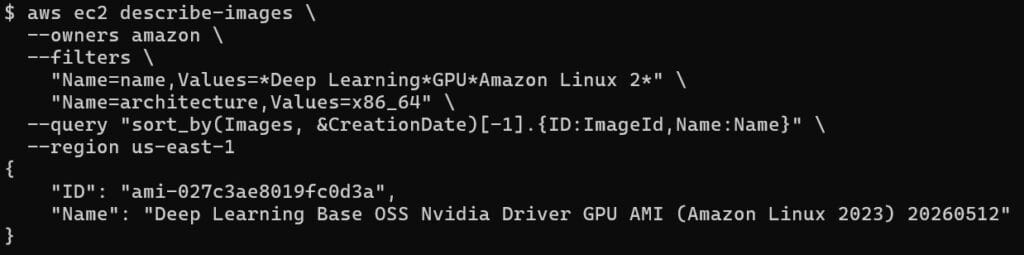
Create a security group and open the ports you need:
aws ec2 create-security-group \
  --group-name llama-sg \
  --description "Llama inference server" \
  --region us-east-1
aws ec2 authorize-security-group-ingress \
  --group-name llama-sg --protocol tcp --port 22 --cidr 0.0.0.0/0 --region us-east-1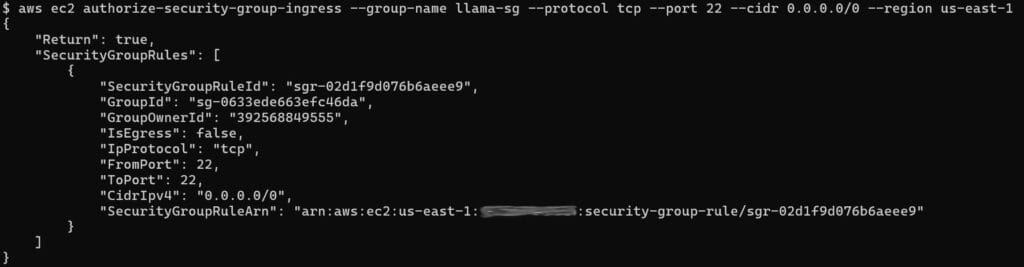
aws ec2 authorize-security-group-ingress \
  --group-name llama-sg --protocol tcp --port 8080 --cidr 0.0.0.0/0 --region us-east-1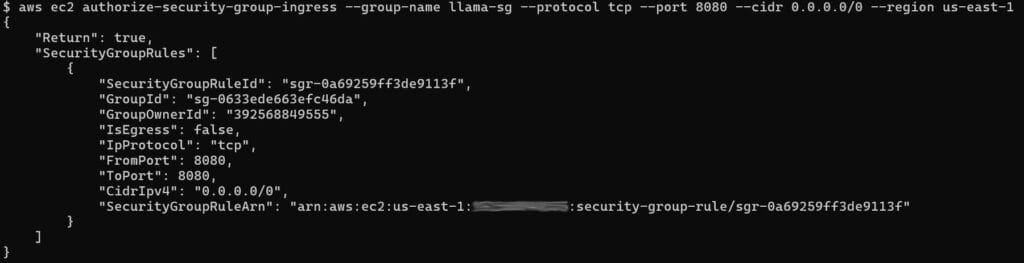
Launch the instance:
aws ec2 run-instances \
  --image-id YOUR_IMAGE_ID \
  --instance-type g4dn.xlarge \
  --key-name YOUR_KEY_NAME \
  --security-groups llama-sg \
  --block-device-mappings '[{"DeviceName":"/dev/xvda","Ebs":{"VolumeSize":100,"VolumeType":"gp3"}}]' \
  --region us-east-1 \
--tag-specifications 'ResourceType=instance,Tags=[{Key=Name,Value=llama3-inference}]'Why 100 GB? The Deep Learning AMI takes ~50 GB. The model file is another ~5 GB. Give yourself headroom.
Get your public IP once the instance is running:
aws ec2 describe-instances \
  --filters "Name=tag:Name,Values=llama3-inference" \
  --query "Reservations[0].Instances[0].PublicIpAddress" \
--region us-east-1Step 2: Connect and Verify the GPU
ssh -i ~/path/to/your-key.pem ec2-user@<PUBLIC_IP>Once in, confirm the GPU is live:
nvidia-smi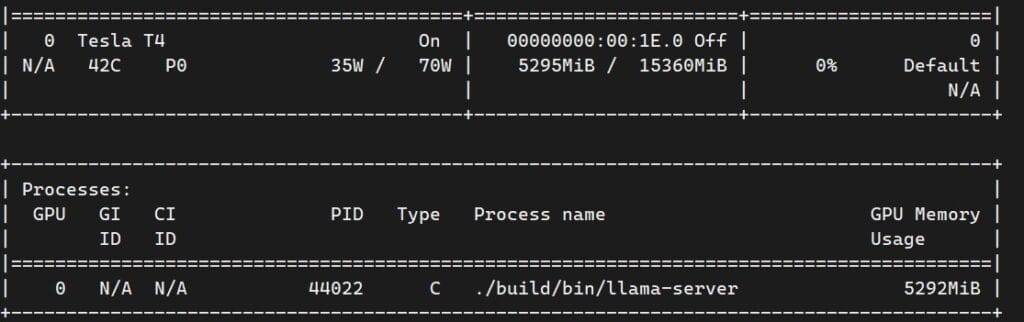
You’re looking for an NVIDIA Tesla T4 with ~15 GB VRAM. If you see this, you’re on the right hardware and the CUDA drivers are working.
Step 3: Install Build Dependencies and Clone llama.cpp
The Deep Learning AMI already has everything you need. This step is almost trivial:
sudo yum install -y git cmake gcc gcc-c++ make
git clone https://github.com/ggerganov/llama.cpp
cd llama.cppStep 4: Build llama.cpp with CUDA Support
mkdir build && cd build
cmake .. -DGGML_CUDA=ON
cmake --build . --config Release -j$(nproc)A word about time: This took about 90 minutes on the g4dn.xlarge. llama.cpp compiles hundreds of CUDA kernel files – GPU kernel compilation is inherently slow. Get a coffee. It’s a one-time cost, and if you snapshot your EBS volume afterward (more on that at the end), you’ll never wait again.
What ‘-DGGML_CUDA=ON‘ actually does: Without this flag, all matrix operations run on the CPU. With it, they’re compiled to run on the T4’s CUDA cores. The difference in inference speed is roughly 10x. This is the single most important flag in the entire guide.
Verify the build succeeded:
./bin/llama-cli --version
# version: 9187 (0253fb21f)
# built with GNU 11.5.0 for Linux x86_64Step 5: Download Llama 3.1 8B (Quantized)
First, accept the license on HuggingFace: go to huggingface.co/meta-llama/Meta-Llama-3.1-8B-Instruct, fill out the form and click “Accept”. Then generate a read-scoped access token in your HF settings.
# Go back to home dir
cd ~

# Install HuggingFace CLI
pip3 install huggingface_hub

# Log in with your HF token
hf auth login

# Paste your token when prompted

# Create model directory
mkdir -p ~/models

# Download Q4_K_M quantized GGUF (~4.7 GB)
hf download \
  bartowski/Meta-Llama-3.1-8B-Instruct-GGUF \
  --include "Meta-Llama-3.1-8B-Instruct-Q4_K_M.gguf" \
--local-dir ~/modelsWhat Q4_K_M means: 4-bit quantization, K-quant method, medium size variant. Full fp16 would need ~16 GB VRAM (too big for T4). Q4_K_M fits in ~5 GB VRAM with minimal quality loss – this trade-off is worth a paragraph in the blog post.
Step 6: Start the Inference Server
cd ~/llama.cpp

./build/bin/llama-server \
  --model ~/models/Meta-Llama-3.1-8B-Instruct-Q4_K_M.gguf \
  --host 0.0.0.0 \
  --port 8080 \
  --n-gpu-layers 999 \
  --ctx-size 4096 \
--parallel 2Flag breadown:
- ‘–n-gpu-layers 999’ – offload all transformer layers to the GPU (999 means “as many as fit”; all 32 layers of the 8B model fit easily on the T4)
- ‘–ctx-size 4096’ – context window in tokens
- ‘–parallel 2’ – serve 2 simultaneous requests
- ‘–host 0.0.0.0’ – bind to all interfaces so external requests can reach it
You’ll see the model loading layer by layer, then: ‘llama server listening at http://0.0.0.0:8080’.
Step 7: Test the Endpoint
Open a second terminal (or a new tmux pane with ‘Ctrl+b c’).
From your local machine, send a request using the instance’s public IP:
curl http://<PUBLIC_IP>:8080/v1/chat/completions \
  -H "Content-Type: application/json" \
  -d '{
    "model": "llama3",
    "messages": [{"role": "user", "content": "What is 17 * 43?"}],
    "max_tokens": 50
  }'
The response includes the answer, token counts, and timing data. Notice the model field in the response: ‘Meta-Llama-3.1-8B-Instruct-Q4_K_M.gguf’ – your own model, running on your own infrastructure.
The OpenAI Compatibility angle: llama-server exposes an OpenAI-compatible API. Any application or library that talks to OpenAI can point to this endpoint instead – just change the base URL and you’re done. No code changes required.
Step 8: Benchmark – Real numbers
./build/bin/llama-bench \
  --model ~/models/Meta-Llama-3.1-8B-Instruct-Q4_K_M.gguf \
  --n-gpu-layers 999
Results from this deployment:
Test Speed:
- Prompt processing (pp512) – 1,093 tokens/second
- Text generation (tg128) – 34.36 tokens/second
Prompt processing at over 1,000 tokens/second means the model reads your input almost instantly. Text generation at 34 tokens/second means a typical 200-word response arrives in about 6 seconds – perfectly usable for most applications.
Cost Breakdown:
| Item | Cost |
| g4dn.xlarge on-demand | ~$0.526/hour |
| EBS (100 GB gp3) | ~$0.008/hour |
| Data transfer | minimal for API use |
| Total | ~$0.53/hour |
Run it 8 hours a day, 20 working days a month: ~$85/month. Compare that to OpenAI API costs for the same volume of requests – at 34 tokens/second, you’re generating over 2 million tokens per hour, which would cost $30+ on GPT-4o for output tokens alone.
Cost Optimization Tips:
Use spot instances. A g4dn.xlarge spot instance typically costs $0.15–0.20/hour – a 60-70% saving. The trade-off is that AWS can interrupt with 2 minutes’ notice. For batch processing or dev/test workloads this is fine; for production you’d add a restart handler.
# Add this to run-instances for spot pricing
--instance-market-options '{"MarketType":"spot"}'Snapshot your EBS volume. Once you’ve built llama.cpp and downloaded the model, snapshot the volume. Next time you need the server, launch from the snapshot and skip the 90-minute build. Snapshots cost ~$0.05/GB/month (~$5/month for 100 GB).
aws ec2 create-snapshot \
  --volume-id vol-XXXXXXXXXXXXXXXXX \
  --description "llama3-inference-ready" \
--region us-east-1Stop, don’t terminate, when idle. A stopped instance costs nothing for compute (only EBS storage). Restart in ~30 seconds when needed. Just don’t forget to shut it down – a g4dn.xlarge running 24/7 costs ~$380/month.
Troubleshooting
| Problem | Check | Fix |
| ‘VcpuLimitExceeded’ | Service Quotas → G and VT instances | Request quota increase; wait for approval |
| GPU not detected | ‘nvidia-smi’ | Wrong AMI type — use Deep Learning Base GPU AMI only |
| Architecture mismatch on launch | AMI details | Filter for ‘x86_64’; g4dn is not ARM |
| CUDA not compiled in | ‘./bin/llama-cli –help \| grep -i cuda’ | Rebuild with -DGGML_CUDA=ON’ |
| Out of VRAM | Server crashes on model load | Use Q3_K_M instead, or upgrade to g4dn.2xlarge (32 GB) |
| Port 8080 unreachable from outside | ‘curl localhost:8080’ locally | Check security group inbound rule for port 8080 |
What’s Next
You now have a working private LLM endpoint. A few directions from here:
- Add a RAG pipeline – connect the endpoint to a PGVector database and give the model access to your own documents
- Multiple models behind a load balancer – run different models for different use cases, route by task type
- Auto-shutdown on idle – a Lambda function that monitors CloudWatch metrics and stops the instance after 30 minutes of inactivity
Conclusion
Self-hosted LLM inference isn’t as complex as it sounds. With the right AMI, one build flag (‘-DGGML_CUDA=ON’), and a quantized model, you get a production-capable endpoint for a fraction of managed API costs – with full control over your data.
The numbers from this deployment: 34 tokens/second text generation, 1,093 tokens/second prompt processing, 5.2 GB VRAM, $0.53/hour.
I build AI infrastructure on AWS
2 Comments
Comments are closed.